 September 24, 2026 ·
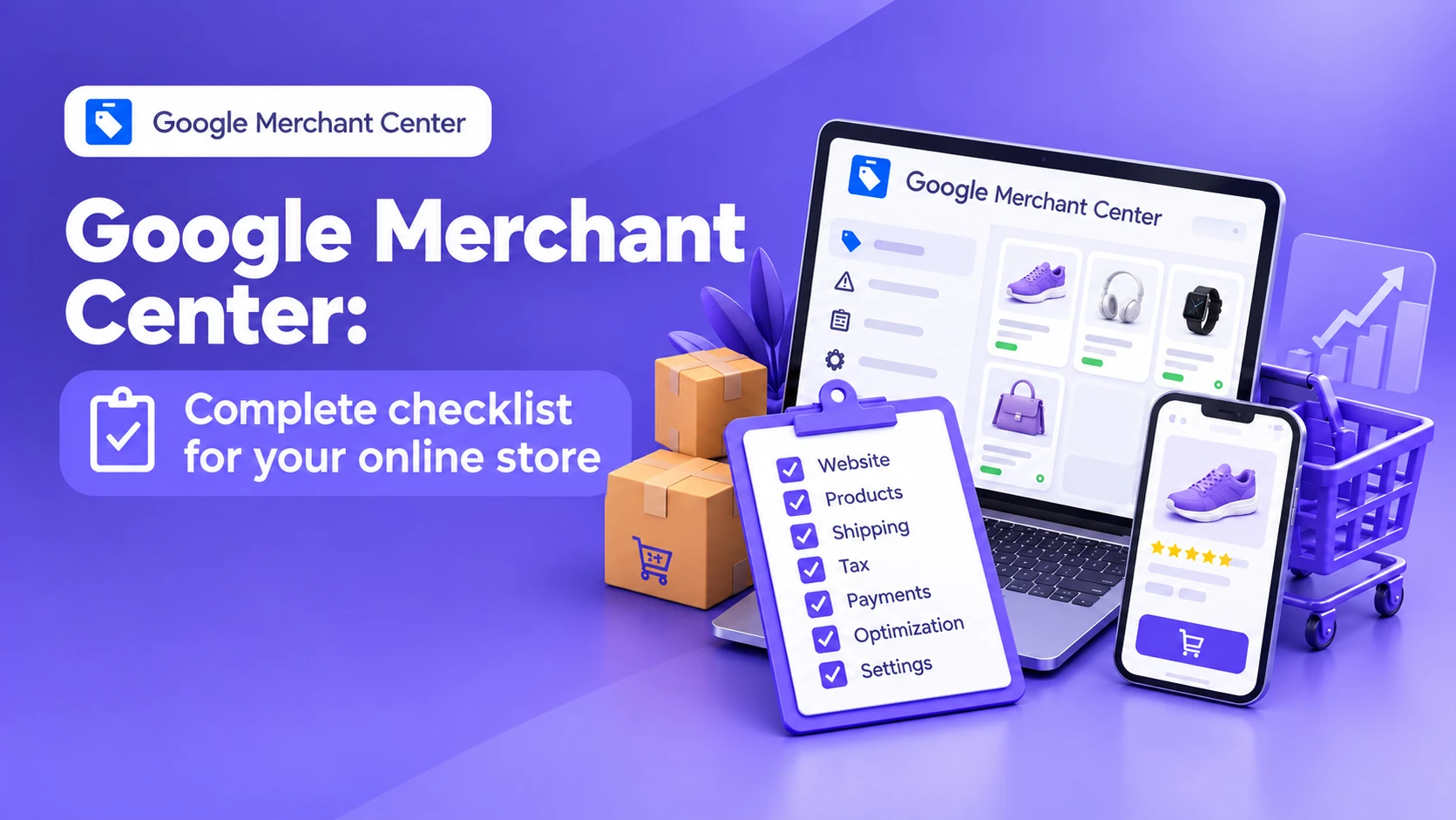
Contents
- Check your website before connecting Merchant Center
- Add company information
- Create a "Shipping" page
- Create a "Payment" page
- Spell out your return policy
- Check the checkout flow
- Check your product feed
- Write a proper product title
- Optimize the description
- Check price and availability
- Add product identifiers
- Check product variants
- Check your images
- Structured data Product
- robots.txt and page accessibility
- Technical health of the site
- Data consistency at every level
- Diagnostics in Merchant Center
- Merchant Center and SEO
- Merchant Center and AI search
- Final checklist
- The main takeaway
- FAQ
Google Merchant Center is how you send Google information about your online store's products: titles, prices, availability, images, attributes, shipping, and other parameters.
The quality of that data affects not only whether Google can process your products, but also how accurately they get matched to users' search queries. Google explicitly states that Merchant Center data is used to match products to queries, and also as an input for its AI-powered and advertising features (more in Google Merchant Center's product data specification).
So think of Merchant Center as a chain rather than a "product file": website → product data → Merchant Center → Google Ads / free listings → the user. If there are contradictions between these elements, products can end up with warnings, limitations, or disapprovals.
In short: To get Google Merchant Center ready for launch, check five things — your website, your product feed, prices and availability, commercial terms (shipping, payment, returns), and technical page accessibility. Data in Merchant Center must match what the user actually sees on the site. Before launch, check errors and warnings in Diagnostics, along with your Product structured data, images, and product identifiers.
Below is a checklist you can use before launching a new store, or when tracking down the cause of Merchant Center issues.
1. Check your website before connecting Merchant Center
Start with the online store itself, not your ad settings. Google's requirements aren't limited to the product feed: the pages that product ads and free listings link to also need to be functional, relevant, and easy to use (more in Google's website requirements for free listings).
Check that:
- the site opens without errors;
- product pages are accessible to users;
- product pages don't require contacting a manager just to get a price;
- the price is clear;
- availability displays correctly;
- the user can understand how to buy the product;
- shipping information is available;
- payment information is available;
- return information is available;
- company contact details are easy to find;
- the site works on mobile devices;
- the site uses HTTPS.
Pay particular attention to the pages your ads point to. If Merchant Center shows one price and the user sees another on the site, that's more than a cosmetic issue: Google requires that product information in your data source match the information on your website (more in Google's guidance on providing high-quality data).
2. Add clear company information
It's worth having a dedicated section on your site with seller information — "About Us" or "Contacts." Include:
- the company or store name;
- a contact phone number;
- email;
- a physical address, if relevant to your business;
- ways to get in touch;
- any other information that helps clarify who's selling the product.
The information on your site shouldn't contradict the data used in Merchant Center. When reviewing a store, Google also assesses the site's quality and professionalism. For free listings, Google specifically states that a site should include clear business information and shouldn't have incomplete or hard-to-understand content (more in the website requirements for free listings).
3. Create a dedicated “Shipping” page
Buyers should be able to find out in advance: where the product ships to, which shipping methods are available, how much shipping costs, how long order processing and transit take, whether free shipping is offered, and whether there are regional restrictions.
The information on your site should match your shipping settings in Merchant Center. Don't declare conditions in Merchant Center that don't exist on your site — for example, if Google's settings say you ship nationwide, but the site says you only ship to a few specific cities, that's a mismatch. Google specifically calls out shipping data and its requirements in the product data specification (more in the product data specification).
What's worth including on the page:
- Order processing time — e.g., 0–1 business day.
- Shipping time — e.g., 1–3 business days.
- Cost — a fixed price, free shipping, or the calculation rules.
- Shipping regions — the specific countries or regions you actually ship to.
4. Create a "Payment" page
Buyers should clearly understand how they can pay for an order — for example, by card, Apple Pay / Google Pay, cash on delivery (if available), bank transfer, or another method your store actually supports.
The main rule: the information on your site should match the real purchase process. If a user places an order and then finds out the stated payment method doesn't exist, that hurts both conversion and the quality of your store's data.
5. Spell out your return policy separately
Create a "Returns & Exchanges" page explaining: whether the product can be returned, within what timeframe, in what condition, who pays for return shipping, how to request a return, when refunds are issued, and whether there are exceptions for certain product categories. If a product has a warranty, that information should also be on the site.
Google treats return information and other store data as part of its requirements for commercial websites and product data (more in the website requirements for free listings).
6. Check the checkout flow
An online store has to let people complete a purchase. Check the path: product page → cart → checkout → payment → order confirmation.
At every step, the user should understand: which product they're buying, the quantity, the total cost, shipping cost, payment method, and order terms.
If a purchase requires messaging a manager on Telegram or Instagram, that's a different user scenario. For classic e-commerce, it's best if the main purchase steps can be completed directly on the site.
7. Check your product feed
Once the site is ready, we move to Merchant Center itself. Google uses a set of attributes to describe each product. The basic ones include: id, title, description, link, image_link, availability, price, brand, gtin, condition.
Not every attribute is required for every product, but the more accurately and completely your data is filled in, the more information Google has about the product (more in Google's guidance on providing high-quality data).
8. Write a proper product title
The title attribute. The title should clearly describe the product. Don't turn it into ad copy:
❌ "SUPER PRICE!!! BEST PRODUCT FREE SHIPPING"
✅ "Nike Air Max 270 Men's Sneakers, Black"
Google recommends adding attributes that help distinguish the product from others: brand, model, color, size, and other relevant details (more in the guidance on data quality). The title should also match the actual product on the page.
9. Optimize the description
The description attribute. The description should tell people about the product itself, not be a pile of keywords. You can include material, purpose, dimensions, color, technical specs, what's in the box, features, compatibility, and other identifying details.
Google recommends writing a normal, informative description, and notes the text can be used by its systems to understand and match the product to user queries (more in the guidance on data quality).
10. Check price and availability
Mismatches between Merchant Center and the website are an especially common source of problems. For example, the feed says 999 UAH, but the site shows 1,099 UAH. Or Merchant Center says "In stock," while the page says "Out of stock." These discrepancies need to be resolved.
Google explicitly states that incorrect or conflicting data between the feed and the site can lead to display issues or product disapproval (more in Google's help on issues in Merchant Center).
11. Add product identifiers
If the manufacturer has assigned a GTIN to the product, it should be submitted to Merchant Center. You can also use brand and mpn. Google uses these identifiers to better understand the product and match it to information from other sources.
If a GTIN exists but is submitted incorrectly, that can cause problems with the product (more in the product data specification).
12. Check product variants
If a product has variants — color, size, volume, material, bundle — they need to be linked together correctly. This uses attributes like item_group_id, color, and size.
Google specifically calls out variant errors as one of the common causes of Merchant Center problems (more in the help on issues in Merchant Center).
13. Check your images
The main image should show the product. Avoid watermarks, images that don't match the product, promotional text instead of a product photo, photos of a different variant, or low-quality or broken images.
That said, the "images must be on a pure white background" rule shouldn't be treated as a universal requirement for every product. What matters most is that the image meets Google's requirements and correctly represents the product.
14. Add Product structured data to your site
This technical step is often skipped. Product pages can use Schema.org / Product structured data, which helps Google read product information automatically straight from the page's HTML.
Depending on the implementation, this can carry the title, description, price, availability, brand, GTIN, SKU, offer details, shipping, and returns. Google recommends using structured data and provides dedicated documentation on Product markup (more in Google's guide to setting up structured data for Merchant Center and in Google Search Central's documentation on Product structured data).
One rule: structured data must match what the user sees on the page. You can't list one price in Schema and show a different one to the user.
15. Check robots.txt and page accessibility
Google needs to be able to access the necessary pages on your site. Check robots.txt, product pages, images, category pages, the pages your products link to, the feed URL, and any technical resources needed to load the page.
If Googlebot can't access a page or an important resource, the system may not get the information it needs. That said, there's no need to open everything to every bot unnecessarily — it's better to check specific restrictions and confirm that the pages Google needs are accessible.
16. Check your site's technical health
Before launching Merchant Center, it's worth checking:
- HTTPS — the site should run over a secure connection.
- Mobile version — product pages should open properly on a smartphone.
- Speed — users should be able to quickly open a product and check out.
- 404 errors — product URLs from the feed shouldn't lead to missing pages.
- Redirects — the link in the feed should take the user to the correct product page.
- Canonical URLs — for products with multiple URLs, canonical tags need to be set up correctly.
17. Check data consistency at every level
Before launch, it's useful to manually walk through one product: Merchant Center → website → product page → cart → checkout.
Compare: the title (matches or logically corresponds), the price (matches), availability (matches), the variant (the correct color/size is selected), the image (matches the product), shipping (matches the site's terms), returns (information is available), and identifiers (correct).
This kind of test often finds the problem faster than fixing dozens of products in Merchant Center later.
18. Don't ignore Diagnostics in Merchant Center
After uploading products, always open the issues section. Google shows diagnostic information for your products and helps identify which data is causing the problem (more in Google's help on issues in Merchant Center).
Errors should be split into: critical (the product can't show at all), warnings (the product can show, but there's an issue that may affect data quality or performance), and recommendations (Google suggests improving the data).
Don't try to fix everything at once without understanding the cause. First figure out: which attribute → which error → why it appeared → where the bad data comes from.
19. Merchant Center and SEO aren't the same thing
These are two different jobs. SEO is responsible for your site's organic visibility. Merchant Center sends Google structured product data for Shopping, free listings, and other commerce features. But they can reinforce each other.
For example, a well-built product page can simultaneously have clear SEO copy, Product structured data, accurate Merchant Center data, good images, an up-to-date price, availability info, and shipping and return terms. That gives Google multiple sources of information about your product.
20. Why Merchant Center matters for AI-powered search too
Google explicitly states that Merchant Center data is one of the inputs for its AI-powered features and ad formats (more in Google's product data specification).
So product data shouldn't be written just "for the feed." It needs to be accurate, unambiguous, structured, current, and consistent with the website. The title should clearly explain what the product is. The description should cover its attributes. Identifiers should match the specific product. Price and availability should be current. Structured data should match the page's visible content.
This helps Google's automated systems better understand exactly what your store sells.
The main takeaway
Google Merchant Center shouldn't be treated as a place where you just upload an XML feed and hit "launch." For Shopping ads and free listings to work properly, you need several sources to agree: website + product feed + Merchant Center + structured data + commercial terms.
If these sources contradict each other, Google gets incomplete or ambiguous information about the product. But when the title, description, price, availability, identifiers, images, shipping, and on-page data are all aligned, Google gets a much clearer picture of the product.
And this matters beyond Shopping ads. Google explicitly links high-quality product data to matching products with user queries, and to how that data is used in AI-powered formats and features.
So a good Merchant Center setup doesn't start with configuring a Google Ads campaign. It starts with how well your online store describes its own products.
Need help setting up Merchant Center or launching Shopping ads? I'll check your website, product feed, and structured data, and set up campaigns so your products show without disapprovals or warnings.
Frequently Asked Questions
What is Google Merchant Center?
Google Merchant Center is a Google service that online stores use to submit information about their products. It stores data about the title, description, price, availability, images, and other product attributes.
Why do you need Google Merchant Center?
Merchant Center is required for online stores to send product data to Google. This data can power Shopping ads, free product listings, and other Google commerce features.
What do you need to set up Google Merchant Center?
Setup usually requires an online store website, product data, pricing and availability information, shipping and returns details, and a correctly configured product source, such as an XML feed or another supported upload method.
Why does Google disapprove products in Merchant Center?
A product can be disapproved due to a price or availability mismatch between the site and the feed, shipping issues, incorrect identifiers, an inaccessible product page, image problems, or other violations of Google's requirements.
How do you check Google Merchant Center errors?
The main place to check product issues is the Diagnostics section in Merchant Center. It shows errors and warnings related to your product data.
Do you need SEO for Google Merchant Center?
SEO and Merchant Center solve different problems, but well-optimized product pages can benefit both systems. The title, description, structured data, price, availability, and other attributes should be clear and consistent.
Can you use Google Merchant Center without Google Ads?
Yes. Merchant Center isn't only for paid ads. Google also offers free product listings where eligible.
What should you check before launching Google Shopping?
Before launch, check the website, product feed, price, availability, images, product identifiers, shipping, returns, Product structured data, page accessibility, and errors in Diagnostics.
- Google Merchant Center Help — Product data specification
- Google Merchant Center Help — Provide high-quality data
- Google Merchant Center Help — Free listings for products (website requirements)
- Google Merchant Center Help — Set up structured data for Merchant Center
- Google Search Central — Product structured data
- Google Merchant Center Help — Issues in Merchant Center
Getting your store ready for Google Shopping?
I'll check your website, product feed, and structured data, and set up Merchant Center and campaigns so products show without disapprovals.
Get in Touch Website auditLanding Page Audit Before Running Ads: What to Check So You Don't Waste Your Budget26.10.2026
 Google Ads & Meta AdsHow Much Do Google Ads and Meta Ads Setup and Management Cost?26.10.2026
 InstagramInstagram Shadowban: How to Check It, Why Reach Dropped, and What to Do20.10.2026
 BudgetsMinimum Advertising Budget: Google Ads, Meta Ads, and TikTok Ads in 202621.09.2026
 Retargeting & AudiencesOrganic Traffic + Retargeting: How to Turn Free Website Visitors into Customers21.09.2026
 Choosing a ChannelHow to Choose the Best Advertising Tool for Your Business: Google Ads, Meta Ads, TikTok, or Something Else?22.09.2026
 Choosing a ContractorFreelancer or Agency: What's Better for Business Advertising?08.10.2026
 Meta AdsWhy Meta Rejects Your Ads: The Main Causes and What to Do25.09.2026
 Ad Account AuditAd Account Audit: A Complete Checklist for Google Ads and Meta Ads25.09.2026